
Inside the Relay demo: explore useful software safely
How Relay’s live sample workspaces help visitors understand an app before signing up, connecting accounts or handing over a real task.
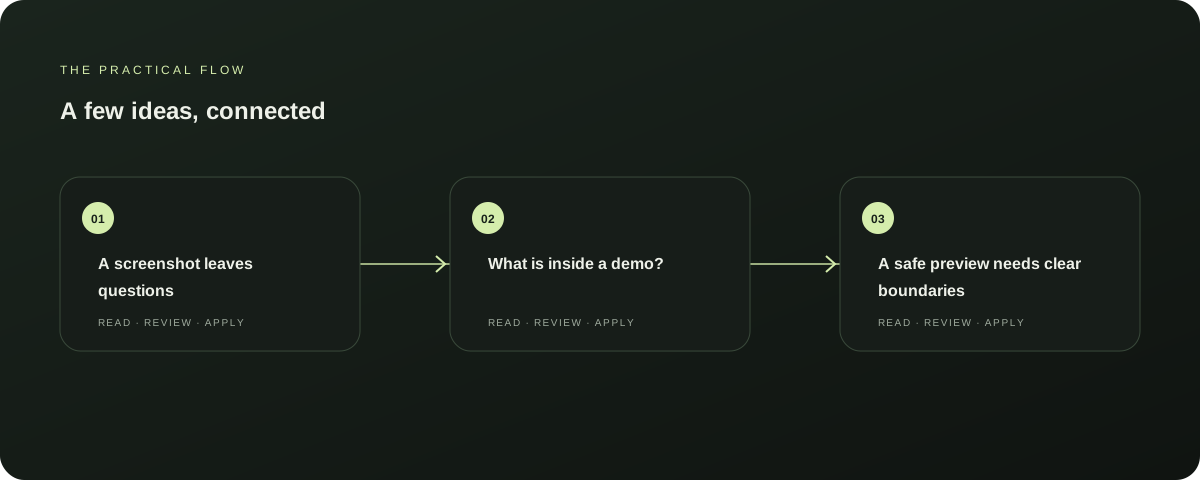
A screenshot leaves questions
A static screenshot shows a button or chart, but not what happens when you move between a persona, a calendar and a scheduled post. Relay’s live sample workspaces let visitors explore a more complete example of each app in a browser, without signup or setup. Further reading: Explore Hunter
What is inside a demo?
The sample accounts contain fictional examples. AutoBox includes audience and campaign examples.
Explore this section
AutoFeed opens on its personas workspace and includes sample profiles, a calendar and example posts. Hunter demonstrates a pipeline with fictional roles and stages.
These records exist to make the interface easier to understand; they are not customer accounts or live work. Further reading: Explore the AutoFeed demo
A safe preview needs clear boundaries
A preview is useful only if opening it cannot accidentally trigger the action it represents. Relay’s demo uses a separate dummy identity, labels sample data and blocks actions such as sending outreach or publishing posts.
Explore this section
AutoFeed’s social profiles are disconnected and its sample schedule is protected. Visitors can inspect the workflow without attaching it to a real audience. Further reading: Explore the AutoFeed demo
Explore with a question in mind
A tour is more useful when you look for one thing. In AutoFeed, open the calendar and compare the platform dots with the posts below.
Explore this section
In AutoBox, look at how a prospect, campaign and follow-up relate. In Hunter, follow a fictional opportunity through its stages.
Ask whether the sequence makes sense before deciding what you need next. Further reading: Explore Hunter
Where a demo stops
A sample workspace cannot prove that a product will fit every process, and its fictional counts are not performance claims. It can show the interface, the names of key actions and the general shape of a task.
Explore this section
Availability and features can change, so check the live app’s current information before relying on a specific feature. Further reading: Explore the AutoFeed demo
Take the next step when it is useful
Choose the app that matches the work you want to organise. Explore its sample first, then visit the app to learn about using it with your own information.
Explore this section
A preview should not send a message, publish a post or submit a job application. Further reading: Explore Hunter
Sources & further reading
Explore the original guidance and research behind this article.
Put the idea into practice.
Explore AutoFeed, or take a look inside a sample workspace.